
- News
- Business News
- Startups News
- How to digitise your Printed Photos
Trending
This story is from November 19, 2016
How to digitise your Printed Photos
The simplest way to digitise your photographs is by using your cell phone camera and Google's new PhotoScan app.
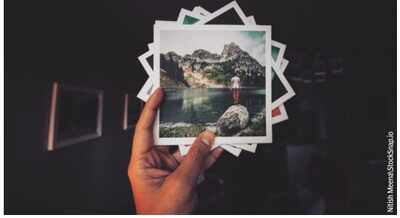
The simplest way to digitise your photographs is by using your cell phone camera and Google's new PhotoScan app.
The simplest way to digitise your photographs is by using your cell phone camera and Google's new PhotoScan app.
It should be noted that the quality of your digital captures will be dependent on the quality of your smartphone camera and its lens. Make sure you shoot the photos in a bright area so your smartphone camera can capture all the details and colour without any grain that results from low light.Also, if you're shooting glossy photos, make sure the print pictures do not reflect the light from your illuminating source.
GOOGLE'S PHOTOSCAN:
Open the app and you are presented with a short tutorial on how to use it. Then, simply use its built-in camera but ton to snap a picture of your photograph and follow the steps of the tutorial. PhotoScan reduces glare to a certain extent when it comes to glossy captures, it automatically crops your shot based on edge detection, and even straightens scans with perspective correction so you get perfect rectangular captures.
Additionally, its smart algorithm rotates photos so they stay the right way up, no matter which way you shoot them. After you're done, you can back up all your new “digital snapshots“ on Google Photos to keep them safe, searchable, and organised. After that, you can use the Google Photos app on your handset to apply filters, carry automatic enhancement of the images, and correct the skew to a fine degree. When you're done, you can use this app to share your digitised photos with anyone via instant messaging, email, Bluetooth connection, etc.
ANDROID, IOS | Free
USE A SCANNER
Scanning images on a flat-bed scanner is easily a better option when compared to using your phone. It captures greater detail and can save higher resolution images for largesize prints. If you have photos numbering in the hundreds, investing in a scanner is a good idea. In fact, you could possibly opt for an MFD (multi-function device) that comprises an inkjet printer, photocopier and scanner. Depending on your budget, you could consider the Canon Pixma E470 (Rs 5,500), the HP DeskJet Ink Advantage 3635 ( Rs 5,700) or the Epson L220 ( Rs 10,300), which offer a scanning optical resolution of 600dpi (dots per inch).
But if you already own a printer, and if you have the space on your desk, look at the Canon Lide 220 (`Rs 5,355) which is a standalone scanner with a whopping resolution of 4800dpi. This machine is good enough for professional quality scans too. In either case, your scanner could also be put to use to digitise your important documents and certificates as well.
To ensure that you get quality output from your scanner...
Clean the scanner's glass bed before every scanning session. This will prevent dust particles and spots from appearing in the final scan.Use a microfibre cloth or a soft-bristle brush to remove and dislodge dust particles from the glass.Do not use harsh cleaning solutions as they may contain chemicals that could cause abrasion on the glass surface.
Also run a soft brush over your photos to ensure that you don't end up digitising dust particles.
This will cut out the additional work of rescanning or using software to remove the spots.
Before you begin scanning, group all the pictures from the same seriesalbums to gether in the same batch. Number them at the back lightly with a soft pencil. This will help you keep track of your photos and will also help in cataloguing your digital album.
Scan multiple photographs from the same batch at a time. Also, make sure they are aligned properly , so you only need to do minor straightening in a photo-editing software. This will help you save time. Later, all you will need to do next is crop the scanned image into individual frames.
Configure the naming convention in the scanning software date wise, for instance and the destination folder, which you should name by location, occasion, etc. This is so you don't have to waste time reorganising and cataloguing them.
Scan photographs at a resolution of 300dpi.This is enough for quality re-prints. For example, you can expect to get an 8x6-inch print from a 2592x1944-pixel (5MP) scanned photo. And if you want much larger prints then you should scan the picture at 600dpi print resolution. That said, file size increases as you increase the dpi value.For sharing on the web, you can opt for 7296dpi. Choose to scan all your photos in colour mode even if they are in black and white. You can always convert the image back to monochrome after carrying out software enhancements.
WINDOWS 10 `PHOTOS':
If you have already migrated to Windows 10 on your PC, then you can use its Photos app for all post-scan processing.The desktop app has simple one-touch controls to enhance your images, rotate your scans, crop them, straighten pictures degree by degree, retouch your snapshots, apply photo filters and effects, and adjust light and colour. In most cases, Photos is all you will ever need.
OUTSOURCE
If you want to completely avoid the labour of shooting or scanning each print photo, you can turn to services such as Scan Corner and Scan Junction. You will, of course, need to pack all your photographs in plastic bags (to protect them from moisture), put these into a sturdy carton and send the package to either of the services. Scan Corner operates out of Hyderabad, while Scan Junction is in Bangalore. Both facilities also accept slides and negatives for digital conversion and promise complete security and privacy for all your personal memories.
Scan Corner and Scan Junction also offer services that include retouching your digital prints.This could involve enhancing the faded colours in your photos, scratch removal and manual restoration of images. Scan Corner, for instance, allows you to send them a scan of your damaged photo by email, and they will give you a quotation based on the restoration work involved.
http:www.SCANCORNER.IN:
First you will need to create an account on the website, place an order and provide your delivery address. The next step is to pack all your pictures and send it to Scan Corner. The images are weighed and counted, and then scanned. Once done, the thumbnails of the digital images are uploaded to a server and secured with a password. This is then conveyed to you via a link in an email for you to check. Scan Corner then returns your original photographs along with the digital files on a DVD or USB pen drive. You even receive a download link containing the high-resolution images, which will be available for 15 days.
http:www.SCANJUNCTION.COM
Similarly , you will need to place an order by filling a form on the website. But before sending your entire consignment of photographs, Scan Junction gives you the option to digitise up to 10 print photos free of cost so you can check their work quality . Once you're satisfied, you can send your entire photo collection. You can opt for pickup and delivery at a cost of `400; personally drop-in and pick up your images from their office, or opt only for `return shipping' after digitisation.
Before you decide on either of these services, we recommend you go through their pricing plans. You can also contact the helpline on their websites to clear all doubts.
End of Article
FOLLOW US ON SOCIAL MEDIA










Photostories

Hot Picks
TOP TRENDING
Trending Stories
In Business
Entire Website
- Will banks open only for 5 days a week? Here’s what you should know about IBA’s proposal
- India set to be third largest economy, says S&P Global
- Dalal Street bull run continues! BSE Sensex crosses 69,000 for the first time; Nifty above 20,800
- Byju’s reduces notice period for employees as troubles mount
- Sensex surges over 900 points, Nifty above 20,550 as BJP state election wins bolster Modi's Lok Sabha 2024 prospects
- UltraTech to buy building materials business of Kesoram in 7,600 crore deal
- Tata Technologies stock debuts at a bumper 140% premium; share price at Rs 1200 on BSE
- Tata Technologies share allotment: How to check IPO allotment status, listing date, GMP
- BSE m-cap rides rally in Adani stocks, tops $4 trillion
- Charlie Munger, who helped Warren Buffett build Berkshire, dies at 99
- J&K, Haryana results live: PM Modi hails Haryana verdict, commends NC's poll performance in J&K
- Heartfelt gratitude to Haryana, says PM Modi after decisive BJP win
- Is this lipoprotein responsible for heart attacks striking young Indians?
- 'Cong has been made to lose ... ': Jairam on Haryana results
- Biggest winners and losers of this election season
- 'Proud of BJP’s performance in J&K': PM Modi praises party workers
- Miracle on the mountain: How 2 climbers were rescued from Uttarakhand peak
- Bharti Airtel may buy another 'loss-making' Tata Group company, after 7 yrs
- 'Satyanaash hi hoga': Brij Bhushan Singh reacts to Vinesh Phogat's win
- 'Illegal': Centre on Ayurveda, Homeopathy drug ads claiming 'miraculous' effects


Popular Categories
Hot on the Web
Top Trends
Vinesh Phogat Election ResultTravis KelceElection Results 2024Haryana Election ResultJason KelceJammu Kashmir Election Result 2024Israel Hezbollah WarHardik SinghAakash ChopraAssembly ElectionHaryana Assembly Constituencies 2024Jammu Kashmir Election Winners ListGurgaon Election ResultHaryana Election Winners ListLive Election ResultFaridabad Election ResultLive Cricket Score
Trending Topics
Tulsi KumarBigg Boss Tamil 8 Contestants ListAjay DevgnNavratri Colours 2024Sanjay Leela BhansaliDurga Puja 2024Bigg Boss 18 House PhotoDevara CollectionBigg Boss 18Deepika PadukoneShailesh LodhaDevaraGovinda NewsNational Film Awards 2024Swatantrya Veer SavarkarColdplay India tour 2025Watch NFL Live StreamDress To ImpressCall Of Duty Black Ops 6Wordle Answer
Living and entertainment
Latest News
Ambala Cantt Assembly Election Result 2024: BJP's big gun Anil Vij defeats Chitra Sarwara by over 7000 votesNavratri as Spiritual Detox: 9 days to cleanse your mind, body and soul5 must follow rules of Ayurveda to lose 5kg in 30 daysUniversity of East Anglia Introduces £4,000 Scholarship for Indian Students: Explore Courses, Eligibility, and BenefitsTodd Phillips explains SHOCKING CLIMAX of 'Joker: Folie à Deux', reveals Arthur Fleck acceptance of his true identityThe Power of Navratri: Honoring Goddess Durga and Manifesting DesiresAlia Bhatt just cannot keep calm on watching 'Singham Again' trailer, says 'all the dynamite in one frame' for the big multi-starrer led by Ajay Devgn3 reasons why Jimmy Uso can betray Roman Reigns and join forces with Solo SikoaThis is the stock trading app linked to Rs 500 crore investment fraud; YouTubers Elvish Yadav, Bharti Singh among 5 summonedNCERT to triple textbook production, aims to print 150 million books this year: Edu ministerMonetary policy committee meet: RBI moving closer to rate cutIndian branded pharma sector to see a decline in growth: ReportFrom spending habits to hiding reality: What each zodiac sign is likely to lie about2024 Haryana assembly election result: 5 reasons why BJP's victory is significantKathua (SC) Assembly Election Result 2024: BJP's Dr Bharat Bhushan wins by 12,177 votesHappy Durga Puja 2024: Best Messages, Quotes, Wishes, and Images to Share on Durga Puja'Hopeful assembly elections results will be in our favour': Union Minister Chirag Paswan3 killed after an Air Evacuation helicopter crashes in Owen County
Copyright © 2024 Bennett, Coleman & Co. Ltd. All rights reserved. For reprint rights: Times Syndication Service